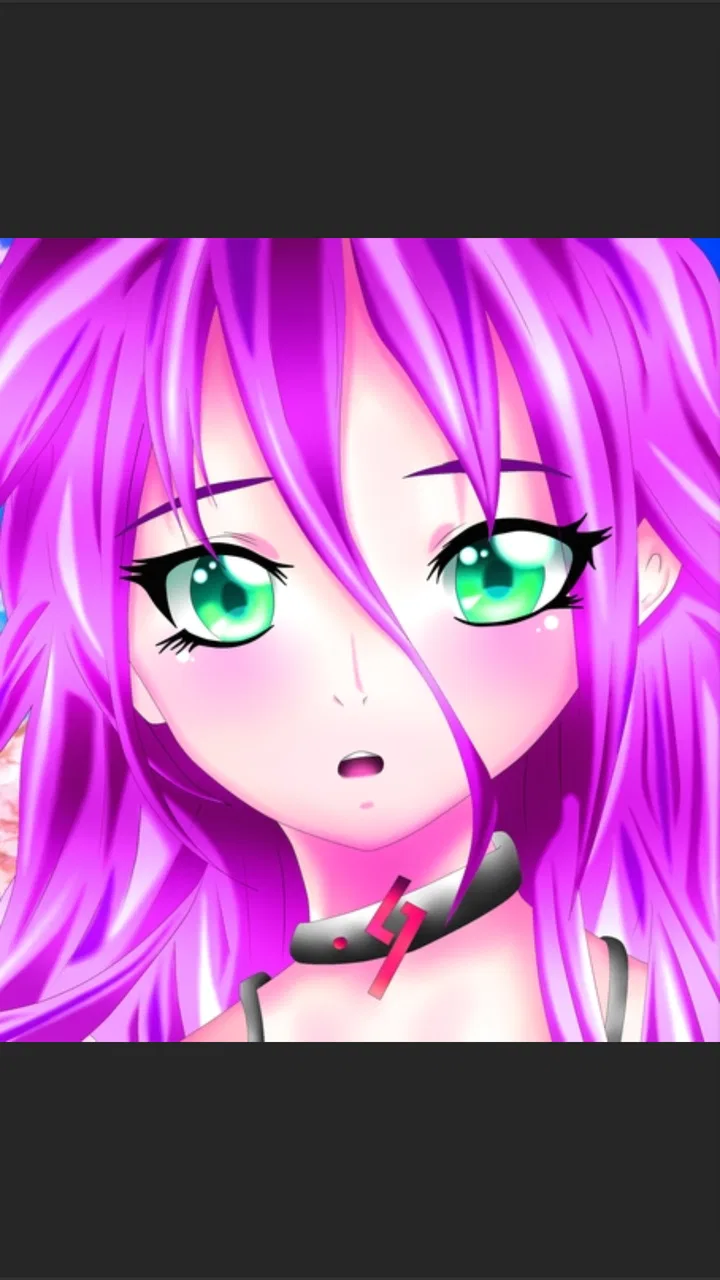
Drawing Pad Lite - Artbook
- 4.6
- Rating
- 10.00M
- Installs
- Free
- Price

 Analysis by App-foxy
I approached Drawing Pad Lite as a simple sketching companion rather than a full digital-art studio. That distinction matters. The app is aimed at getting a blank canvas in front of you quickly, letting you draw or paint, and keeping the experience approachable enough for casual use. After spending time with it, I found its main appeal in that low-pressure starting point: it feels more like a digital pad for ideas than a demanding professional workspace.
This is an Art & Design app from Cards, available for free and rated for Everyone. Its public reception is strong, with a 4.6 average from around 80 thousand ratings, while its reach has passed 10 million installs. Those figures suggest that it has found a broad audience, but they do not automatically make it the right choice for every artist. My experience was more nuanced: it is convenient for quick drawings, practice, and playful experimentation, yet people who need an advanced production workflow may soon want more control than this lighter format provides.
What it feels like to use Drawing Pad Lite
The first thing I noticed is how quickly the app gets out of the way. I did not have to approach it with a complicated plan or understand a long list of specialist tools before making a mark. That makes it useful when the goal is to sketch a rough idea, try a color combination, or give a child a safe creative activity without turning the session into a technical lesson.
You May Also Like

 Blood Strike: 2.5 Anniversary
Blood Strike’s Loadouts Turn Every Drop Into a Tactical Gamble
A close look at Blood Strike’s custom loadouts: how fast access to signature weapons reshapes its battle royale rhythm, rewards preparation, and narrows the gap between fights.

 Pandora - Music & Podcasts
Pandora’s Music Is Easy to Start, but Harder to Recover
Pandora’s strength is its low-effort path from a seed to a station. Its weak spot is how much confidence it asks you to place in connection, setup, and quiet recovery.

 8 Ball Pool
 Is Built on Rivalries, Rematches, and Routine
A close look at the rivalries, rematches, shared routines, and unanswered safety questions that turn a quick pool match into a persistent mobile community.

 Samsung Music
’s Quiet Strength Is Playing What You Already Own
Its reach comes less from spectacle than from dependable access to a personal library. That simplicity is both the app’s strongest retention engine and its ceiling.

 AccuWeather: Weather Radar
AccuWeather Review: A Quick, Clear Forecast for Everyday Decisions
For everyday plans, the best forecast is the one you can understand quickly. AccuWeather makes rain timing, radar, and local conditions easy to act on, with a few trade-offs.

 Hill Climb Racing
Why Hill Climb Racing Still Turns Crashes Into One More Run
A tiny car, a bumpy hill and one more upgrade: Hill Climb Racing keeps resurfacing because its simple chaos makes every near-miss feel personal.
More From Our News Desk
View All News


I would describe the experience as closer to a digital drawing pad than to a complete illustration suite. That is also reflected in the short store description, “Drawing Pad Lite.” The word “Lite” sets a reasonable expectation: this is about accessibility and immediacy, not about replacing every feature found in heavyweight creative software.
For a casual user, that focus is a genuine strength. I can imagine opening it while waiting for an appointment, drawing a quick object from memory, or testing a rough composition before moving to a more capable program. The app suits short sessions because the basic purpose is obvious. You are there to sketch or paint, and the interface does not need to turn that simple intention into a project-management exercise.
At the same time, a lightweight design can become limiting once a drawing becomes important. If I were preparing polished client artwork, building a detailed comic, or working through a layered illustration that needed repeated revisions, I would compare this app carefully with a full-featured drawing tool before committing. The simpler approach is pleasant at the beginning, but advanced users often need precision, organization, and export flexibility that a basic pad may not prioritize.
A practical everyday test
One realistic use case is keeping it available for visual notes. Suppose I suddenly think of a furniture arrangement, a logo shape, or a character pose. Writing a description would be slower than making a rough image, so I can open the app, block out the main forms, and use the sketch as a memory aid. The result does not need to be beautiful. It only needs to preserve the idea before it disappears.
That workflow is where I think the app makes the most sense. I would not judge a quick sketch by the same standards as finished artwork. The value comes from removing hesitation. A blank digital canvas invites experimentation, and the app’s approachable identity makes it easier to treat drawing as a normal everyday activity rather than a skill reserved for trained artists.
It is also suitable for practice. I could draw the same object several times, test loose outlines, or work on color choices without worrying about wasting paper. Beginners may appreciate that freedom, especially when they are still learning how pressure, movement, and visual proportion affect a drawing. The app gives them a place to build confidence before deciding whether they need a more specialized tool.
Where the lighter approach helps, and where it does not
The advantage of a lite drawing app is reduced friction. I do not need to think about a large production pipeline when all I want is a quick visual experiment. That makes it more inviting than some professional alternatives, which can feel intimidating because they present many panels and settings before the first stroke.
The trade-off is that simplicity can mean fewer ways to correct or refine work. If I am particular about brush behavior, detailed editing, complex composition, or a carefully managed sequence of revisions, I may outgrow the app. A professional alternative is likely a better fit when the drawing itself is part of a larger workflow involving multiple assets, precise adjustments, or formal delivery requirements.
There is another important distinction between drawing on a phone and drawing on a larger tablet. On a compact screen, the app is convenient for small studies and spontaneous marks, but my hand can cover the area I am working on. A larger display gives more room for gestures and detail. Drawing Pad Lite can still be useful on a phone, yet I would choose the device based on the type of work rather than expecting the app alone to solve every limitation of mobile drawing.
Trust, controls, and making careful choices
When I review a creative app, I do not judge trust by its popularity alone. A large install base can show that many people use a product, but it does not answer every question about privacy or control. I look for visible choices, understandable account behavior, and clear moments where the user can decide what happens next. With Drawing Pad Lite, I would encourage readers to pay attention to those points directly on their own device before starting a serious project.
The app is free to install, which lowers the barrier to trying it. It also includes in-app purchases ranging from $0.99 to $99.99 per item. That does not mean a user must spend money to begin, but it does mean I would review any purchase screen carefully instead of assuming every option is part of the free experience. For families, I would be especially deliberate about purchase controls on the device, since a child-friendly age rating does not remove the need for adult supervision around spending.
The Everyone content rating makes the app approachable for a wide audience. I see that as helpful for shared devices and family use, but I would still distinguish content suitability from privacy and payment decisions. Those are separate questions. A drawing app can be appropriate for children while adults still need to check system-level purchase protections and any choices presented during setup or use.
I also recommend checking the permission prompts shown by the current installation rather than relying on assumptions about what a drawing app should request. A permission should make sense in the moment it appears. If the app asks for access related to saving or selecting images, I would read the wording and decide whether that access matches my intended workflow. If I am only making a temporary sketch, I may prefer to keep access narrow until I understand why it is needed.
This is one of the most useful trust habits for any app: pause at the decision point. I would not automatically approve every request just because I want to start drawing. I would also revisit the operating system’s permission manager later, particularly if I installed the app for a child or on a device containing sensitive photos. That approach gives me more agency than treating installation as a one-time decision.
Data-sensitive moments during creative work
Drawing itself may feel private, especially when a sketch contains personal plans, a child’s artwork, an unfinished design, or visual notes about a home project. I therefore treat saving, sharing, importing, and deleting as separate moments that deserve attention. Before putting sensitive material into any app, I would inspect the choices visible in the current version and decide whether the workflow is appropriate for that material.
I am cautious about using a casual sketching app as the only home for irreplaceable work. Even when an app is convenient, I prefer to keep important originals in a location I control and understand. For a disposable doodle, that concern is minor. For a commissioned concept or a personal drawing with emotional value, I would make a separate copy when the app and operating system provide a suitable way to do so.
I would also be careful when sharing from a mobile drawing workflow. Before sending an image, I would check the selected file and destination rather than tapping through quickly. This is especially important when several sketches are stored together or when a drawing includes information that was not intended for other people. The app can be useful for creating the image, but the final sharing decision remains mine.
Account control is another point I would consider before building a long-term archive. If an app presents account, sign-in, or synchronization choices, I would read them instead of accepting automatically. A casual user may not need an account for a one-off sketch, while someone moving between devices may value continuity. The right choice depends on the work and on how comfortable I am with the visible terms and controls at that moment.
Tips that make the experience more dependable
My first practical tip is to use the app for stages, not necessarily for the entire creative journey. I can make a rough thumbnail here, evaluate the idea, and then move a selected concept into a more advanced tool if it deserves detailed treatment. This avoids forcing a lightweight drawing pad to perform a professional job while still taking advantage of its speed.
My second tip is to separate experiments from keepers. I would use short sessions to explore shapes and color ideas, then deliberately identify which sketches matter. That habit reduces clutter and makes it easier to notice when a drawing should be preserved elsewhere. It also prevents the common mistake of assuming that every casual mark needs the same level of organization.
My third tip is to test the app with a small, non-sensitive drawing before importing personal images or committing to a larger project. That gives me time to understand the visible workflow, the way the device handles access requests, and whether the controls feel comfortable. It is a better trust check than granting broad access first and asking questions later.
A fourth useful approach is to match the app to the input method. On a phone, I would favor gestures and broad shapes rather than tiny technical details. If I have a stylus and a larger screen, I can judge the app more fairly for drawing practice. If I am using only a finger on a small display, I would accept that the experience is best for loose sketches, coloring, and visual notes rather than precision-heavy illustration.
How it compares with familiar alternatives
Compared with paper, Drawing Pad Lite is more forgiving for experimentation. I can try an idea without using physical materials, and a digital canvas is easier to carry than a notebook. Paper still wins for tactile feedback, instant reliability, and the feeling of drawing without a battery or interface between my hand and the page. For journaling or rough thinking, I can see a place for both rather than treating one as a universal replacement.
Compared with a professional digital-art application, this app is easier to approach but less likely to satisfy a demanding workflow. A specialist tool is the better choice when I need extensive control, detailed organization, or a production-ready process. Drawing Pad Lite is more appealing when I want to begin immediately and keep the creative task uncomplicated.
Compared with a general note-taking app, it is more naturally focused on visual expression. A notes app may be better for combining long text, checklists, and sketches in one place. This app makes more sense when the image is the main point and written explanation is secondary. That difference helped me decide when to open it: I reached for it when I wanted to draw, not when I wanted to manage a complete collection of project notes.
The developer is Cards, and the current version is 2.5.8.3. It was released on November 30, 2021, and supports devices running Android 6.0 or later. Those details matter if I am installing it on an older phone, because compatibility is not only about whether an app appears in a store. I would still check how comfortably it runs on the specific device, especially if the screen is small or the hardware is dated.
Who should try it, and who should look elsewhere
I would recommend Drawing Pad Lite to beginners who want a gentle way into digital sketching, casual users who enjoy making quick drawings, parents looking for an approachable creative activity, and anyone who needs a visual scratchpad. It is also a sensible companion for idea generation, where speed and freedom matter more than a polished final file.
I would be more cautious about recommending it as the main tool for professional illustrators, students following a demanding digital-art curriculum, or designers who already know they need advanced controls. Those users may save time by choosing a specialized application from the beginning. Moving a project later can be inconvenient, particularly if the original workflow does not preserve the structure or editing flexibility they expect.
I would also skip it for work that must remain inside a tightly controlled privacy process until I have personally reviewed the app’s current prompts and device permissions. That is not an accusation; it is simply a sensible boundary. Sensitive material deserves a tool whose controls and handling choices I understand well enough to use confidently.
After using it, my view is positive but deliberately measured. Drawing Pad Lite succeeds when I treat it as a friendly place to start, practice, and capture visual thoughts. Its free entry, Everyone rating, broad availability, and straightforward creative purpose make it easy to try. The in-app purchase range means I would examine spending choices carefully, and the lighter format means I would not confuse convenience with professional depth.
My cautious verdict is that Drawing Pad Lite is worth trying for low-pressure sketching, provided you keep control of permissions, purchases, and important artwork. I would recommend beginning with a small test drawing, checking every choice the app presents, and deciding afterward whether it fits your habits. If you want a quick digital pad, it can be a comfortable option. If you need a complete illustration pipeline, I would use it only for early ideas and choose a more specialized alternative for the finished work.
FAQs for Drawing Pad Lite - Artbook
01What features does Drawing Pad Lite - Artbook offer?
Drawing Pad Lite - Artbook provides a variety of tools for digital drawing and painting, including brushes, pencils, and layers. Users can choose from different textures and colors to enhance their artwork. The app also supports importing images and has an easy-to-use interface, making it suitable for both beginners and experienced artists.
02Is Drawing Pad Lite - Artbook free to use?
Yes, Drawing Pad Lite - Artbook is free to download and use. However, there may be in-app purchases available for additional features or tools. These optional purchases can enhance your experience by providing access to premium brushes, textures, or more advanced editing options.
03Can I save and export my artwork in Drawing Pad Lite - Artbook?
Absolutely! The app allows users to save their artwork directly to their device. You can also export your creations in various formats, making it easy to share on social media or print. This flexibility ensures your work can be easily accessed and distributed as needed.
04Does Drawing Pad Lite - Artbook work offline?
Yes, Drawing Pad Lite - Artbook can be used offline, allowing you to create and edit artwork without an internet connection. This feature makes it convenient for users who might not always have access to Wi-Fi or mobile data, ensuring uninterrupted creativity.
05What devices are compatible with Drawing Pad Lite - Artbook?
Drawing Pad Lite - Artbook is compatible with most Android and iOS devices. It is optimized for both smartphones and tablets, providing a seamless experience across different screen sizes. Ensure your device meets the minimum system requirements for the best performance.
Pros
- Intuitive interface for beginners.
- Wide range of brushes and tools.
- Lightweight and fast-loading app.
- Supports high-resolution exports.
- Frequent updates with new features.
Cons
- Limited layers in free version.
- Ads can be intrusive at times.
- No advanced editing features.
- Limited color palette options.
- In-app purchases can be pricey.

Drawing Pad Lite - Artbook
Gallery